Back up iPhone photos straight to an external SSD or a NAS
The internal drive of a Mac is usually smaller than your photo collection. Photo RollOff writes your shots straight to wherever the space actually is.
A MacBook with 256 gigabytes and a photo collection that has grown over years rarely fit together. The usual route through the Photos library does not help, because the library sits on the system drive as a closed package and keeps growing with every import.
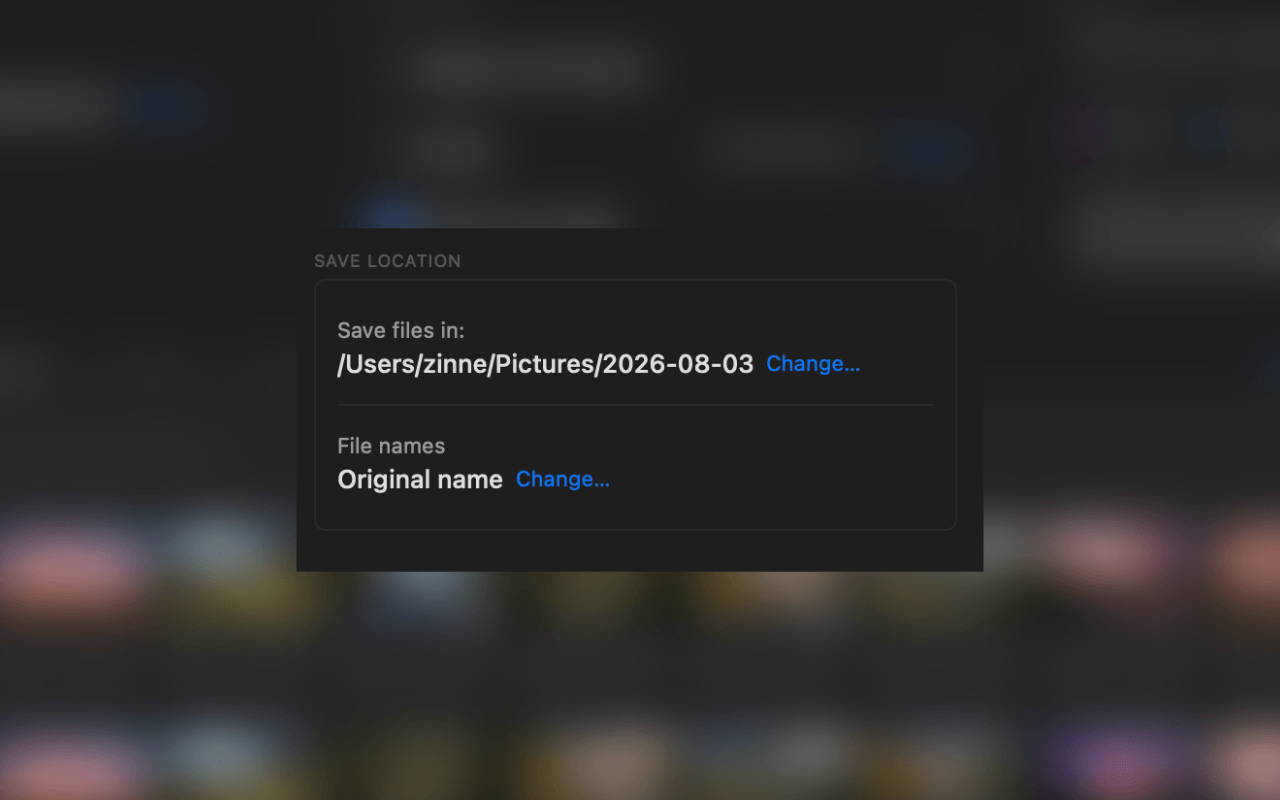
Photo RollOff takes a different route. You simply pick a target folder, and that folder can be anywhere: on the internal drive, on a connected SSD or on a network volume in your own network.
Why an external SSD is the obvious choice
External SSDs are fast enough to push an import of thousands of files through without a long wait, and the price per terabyte is far below what Apple charges for internal storage. For a growing photo collection that is the most level-headed solution.
Because Photo RollOff writes real files into an ordinary folder, you can plug that SSD into any computer and open your images. Neither the app nor a particular Mac is required for that.
Network volumes and NAS as a target
A NAS works as a target too, as long as the share is mounted in the Finder. Photo RollOff then treats it like any other folder. That is particularly handy when several people in a household should file their shots in the same place.
With network targets the connection sets the pace. Over a cable a large import runs noticeably quicker than over Wi-Fi. If you are transferring a very large library, the short walk to the network cable pays off.
How to structure the target folder sensibly
Photo RollOff suggests a folder named after the current date on its own, so for example 2026-08-03 inside your Pictures folder. Every import automatically gets its own place, and you do not have to decide in advance where the files should go. Via Change you can pick any other target instead, on the external SSD just as much as on a network share.
On an external drive a flat structure by year has proven itself, with the individual import folders by date underneath. So for example Photos, then 2026, then 2026-08-03. That stays readable even after a hundred imports, sorts itself in the Finder and needs no software managing the order for you. The app takes on part of that itself if you want: it creates a separate subfolder per capture day, so a large import does not land as one single avalanche of files.
If an import belongs to a particular occasion, the free text in automatic renaming helps on top of that. You enter a keyword like Crete or Wedding during the import, and it then sits in every single file name. That way you find the shots again through search, even if the folder ends up somewhere completely different later.
You decide the destination
Internal drive, external SSD, USB stick or network share: Photo RollOff writes wherever you tell it to. Available as a one-time purchase on the App Store.
Buy storage instead of renting it
An external SSD costs money once and is yours afterwards. A cloud subscription costs every month and stops working the moment you stop paying. For shots meant to stay with you for decades, the first option is the calmer choice.
Related reading
iPhone storage full: back up your photos and delete them safely
Why storage is almost always about photos and videos, and how to free it up without losing a single shot.
Rename photos automatically: file names you can find again
With flexible templates, Photo RollOff renames your shots as they are imported, for example by capture date and original name.
Why Photo RollOff – and why now
How Photo RollOff gives you back your iPhone storage without forcing you into iCloud or a closed photo library.