iPhone storage full: back up your photos and delete them safely
The warning usually arrives at the worst possible moment. In the vast majority of cases photos and videos are the cause, and that is also where space is quickest to reclaim.
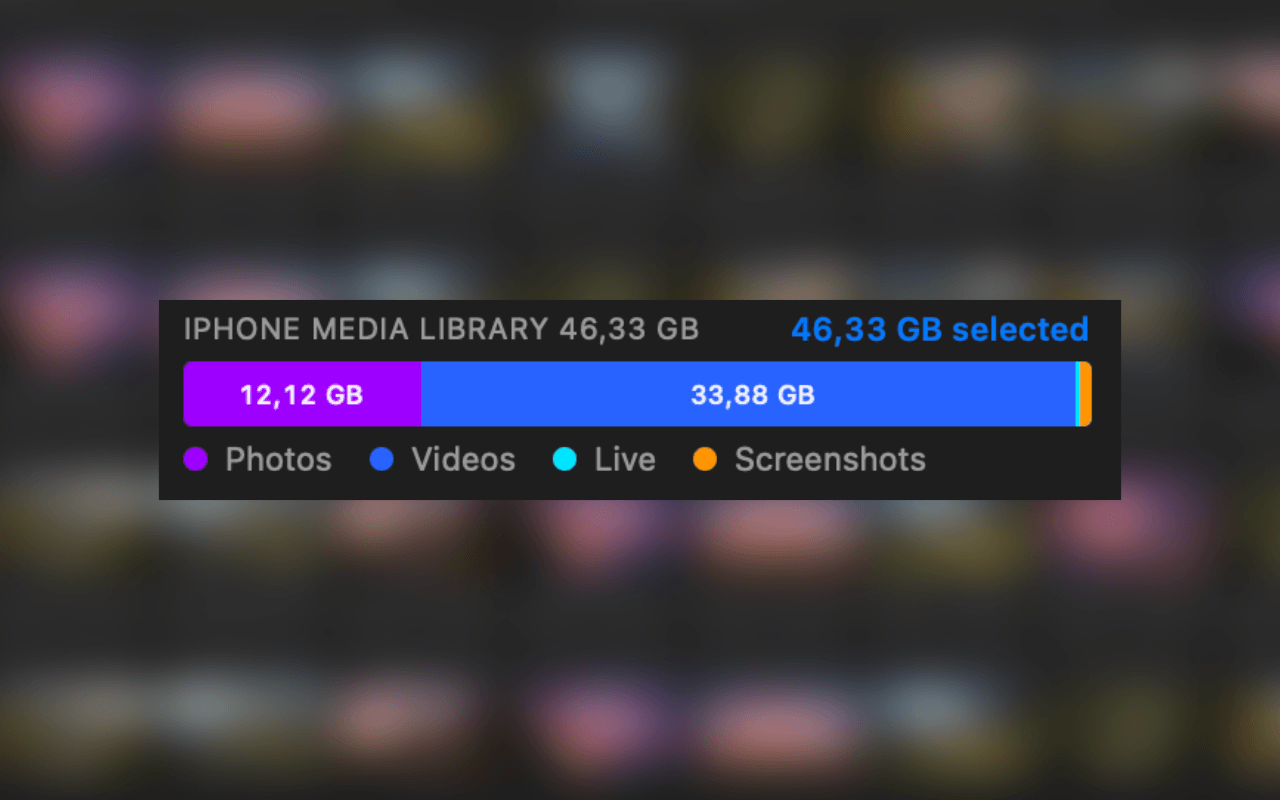
The notice that your iPhone storage is nearly full arrives reliably at the moment you want to film or take a picture. The quick way out that Apple offers is a bigger iCloud plan. That solves the problem, but it costs money every month and moves your images into a service whose terms you do not set yourself.
A look at the storage overview under Settings, General, iPhone Storage almost always shows the same picture: photos and videos take up by far the largest share. Apps and messages are only a fraction.
Why videos take up so much room
A single photo is a few megabytes depending on the format. One minute of 4K video at 60 frames per second, on the other hand, can take several hundred megabytes. If you film regularly you fill 128 gigabytes faster than you would think.
On top of that come screenshots and screen recordings, which pile up quietly over the years because nobody ever clears them out on purpose. Photo RollOff detects both categories separately, so you can handle them independently from your actual photos.
Back up first, then delete
The only right sequence is: get the shots onto another medium completely, check that they arrived there readable, and only then remove them from the iPhone. That is exactly the sequence Photo RollOff follows, without you having to check in between.
The app transfers the original files to your Mac over the cable, verifies every single file after the transfer and then deletes from the iPhone. Whether that happens automatically after a successful check or whether you confirm every step is up to you.
Deletion is final. The shots do not go into the Recently Deleted album to sit there for thirty days, they disappear from the device directly. So the storage is free straight away, without you having to empty a bin afterwards.
The most common stumbling block: iCloud
If iCloud Photos is active on the iPhone and the Optimise iPhone Storage setting is running, many shots are no longer on the device at full resolution. All you see is a small preview, the original sits in the cloud. Older shots are affected in particular, as are ones that originally came from other devices.
For an import over the cable that means: whatever is not on the device cannot be copied from the device. That is exactly where the widespread impression comes from that images are suddenly missing. Photo RollOff detects this situation and shows a hint during the import, so you do not find out afterwards.
The fix is unspectacular: on the iPhone open Settings, then Photos, and choose Download and Keep Originals instead of Optimise iPhone Storage. Once the shots have been fully downloaded to the device they can be imported as normal. Depending on the volume this takes a while and needs free space on the iPhone in the meantime, but it is the reliable route. After that you pull everything onto the Mac with Photo RollOff and free the storage up again.
Buy once, keep using it
Photo RollOff is a one-time purchase on the App Store. No subscription, no in-app purchases, no account and no uploads to any cloud. It needs a Mac running macOS 14 (Sonoma) or later.
Make room without giving anything up
Freeing up storage does not mean parting with memories. It only means moving them somewhere they are better kept than on a device you can lose or drop. After that the iPhone has room again for the next few thousand shots.
Related reading
Why Photo RollOff – and why now
How Photo RollOff gives you back your iPhone storage without forcing you into iCloud or a closed photo library.
Back up iPhone photos straight to an external SSD or a NAS
How to transfer shots from your iPhone directly to an external drive or a network volume, with no detour through the photo library.
Rename photos automatically: file names you can find again
With flexible templates, Photo RollOff renames your shots as they are imported, for example by capture date and original name.